Using the lab
camber lab is a web page on your own computer for CAMBER's catalog of open building datasets.
You pick a dataset, CAMBER downloads it from its publisher and loads it into a local store, and
then you look at its trends, read a report of what CAMBER finds in it, and work through the
re-tuning workbook exercise that uses it.
This guide takes you through a first session step by step, then explains what each page shows, where the data goes, how to set the lab up for a class, and what to do when something goes wrong. The reference pages behind it are DATASETS.md, CLI.md and SECURITY.md.
The lab is provisional (0.96): its page and its Python API (
camber.lab) may still change in a minor release. See API-STABILITY.md.
1. A first session
The walkthrough uses ornl-frp-ops: a real two-storey research office measured at one-minute
resolution, with one rooftop unit and ten VAV boxes, run once around the clock and once with a
night setback. It is small (about 14 MB to download), it has an open licence (CC-BY-4.0), and
the workbook's scheduling exercise uses it. Everything below works
the same for any other open dataset in the catalog.
Step 1: install CAMBER
You need Python 3.10 or newer and a web browser on the same computer.
pip install "camber-toolkit[xlsx]"
The lab itself needs nothing beyond the core package. The xlsx extra (openpyxl) lets CAMBER
read the catalog's Excel workbooks: ornl-frp-vav, used by the
zone-bad-box exercise, and nist-heatpump-fdd. Without it the lab
marks those two rows needs xlsx in red, with the install command, and will not fetch them (see
Troubleshooting). With conda, install camber-toolkit and openpyxl from
conda-forge instead.
Instructors may prefer a source checkout (pip install -e ".[xlsx]" in a clone of the
repository): the lab then serves the workbook pages itself, so the exercise links work without a
network connection.
Step 2: start the lab
Make a folder for the course and start the lab from it:
mkdir camber-course
cd camber-course
camber lab
It prints a few lines and keeps running:
camber lab: store lab_store; dataset cache <the cache's full path>
open this URL in your browser (it carries this run's access token; keep it private):
    http://127.0.0.1:8765/lab?token=<a long random token>
the URL is also saved, readable by you only, in <the launch file's full path>
loopback only; Ctrl-C to stop
- The launch URL opens the lab. Its
tokenis a new random secret each time the lab starts, and every page and request of the lab needs it, so keep it to yourself as you would a password. The launch file holds the same URL in case you lose the terminal (see The page says 401). - The store is where ingested data goes:
lab_store, in the folder you started from. Start the lab from the same folder next time (or pass--store) to find your data again. - The dataset cache is where downloads go, by default
~/.cache/camber/datasets. See Where the data lives. - Ctrl-C in this terminal stops the lab. Leave the terminal open while you work.
Step 3: open the page and pick a dataset
Open the launch URL the lab printed, the whole line with its ?token=..., in your browser:
copy it from the terminal, or Cmd-click / Ctrl-click it if your terminal makes links clickable.
The lab swaps the token for a cookie that lasts until you close the browser, and the address bar
then shows plain http://127.0.0.1:8765/lab. Reload it and open the trends and reports from it
as usual while the browser and the lab keep running. The page lists every catalog dataset, one
per row. Type ornl in the search box, tick ornl-frp-ops, and leave Subset at default.
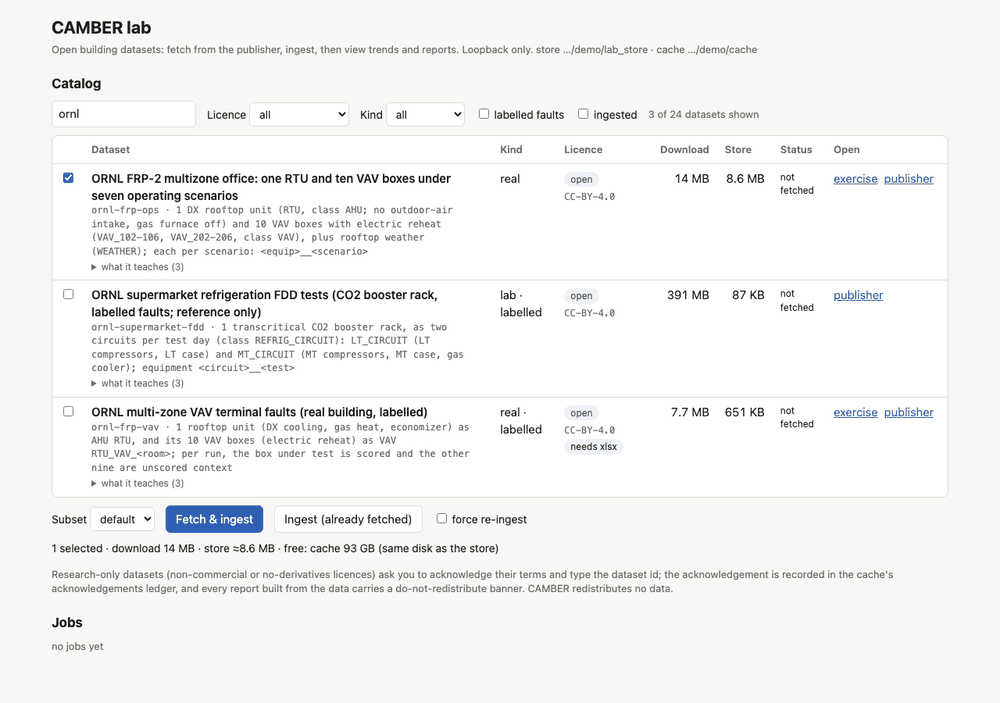
The catalog with one dataset ticked. Under the buttons, the page adds up what the selection downloads, extracts and takes in the store, and compares it with the free disk. ornl-frp-vav needs the xlsx extra, which is installed here. Data: ORNL FRP-2 operations dataset (Im, Jung, Yoon, 2022), CC-BY-4.0.
Each row shows:
| Column | What it tells you |
|---|---|
| Dataset | Title, catalog id and a one-line description of the equipment. What it teaches opens a short list of the lessons in the data. |
| Kind | simulated, real, lab or synthetic (generated by CAMBER; see Synthetic datasets), and labelled when the dataset has ground-truth fault labels. |
| Licence | A green open badge or a red research-only one, and the licence id. A manual badge means you must download the files yourself (see Manual downloads). A needs xlsx badge names an optional extra the dataset needs; it turns red, with the install command, when the extra is not installed, and the row cannot be ticked. |
| Download | How much the selected subset downloads (generated for a synthetic dataset). |
| Store | An estimate of its size once ingested. |
| Status | not fetched, fetched, not ingested, or the facility it was ingested into and its row count. |
| Open | Links: trends and report once ingested, the workbook exercise and the publisher's page. Remove… once anything of the dataset is on disk (see Cleaning up), and From a folder… for a manual download. |
Above the table you can search (by id, title, description or what a dataset teaches) and filter by licence tier, kind, labelled faults or what you have already ingested. The line under the table sums up your selection: how much it still downloads, how much its archives extract into the cache, and how big it gets in the store, against the free space on the cache's disk and the store's disk (one figure when they are the same disk). See Disk use.
Step 4: Fetch & ingest, and watch the job
Press Fetch & ingest. A job appears under Jobs:
- It is
queued, thenrunning. While a file downloads, the job shows a progress bar and the bytes so far. Each file is checked against the size and SHA-256 the catalog records for it before it is used. - The ingest follows, with a line per run (
ornl-frp-ops: run 3/24 ...). - When it is
done, the job shows the dataset's citation (please cite it if you use the data) and how many rows it ingested into which facility. The row's status changes tods-ornl-frp-ops · 1,075,357 rows, and the trends and report links appear.
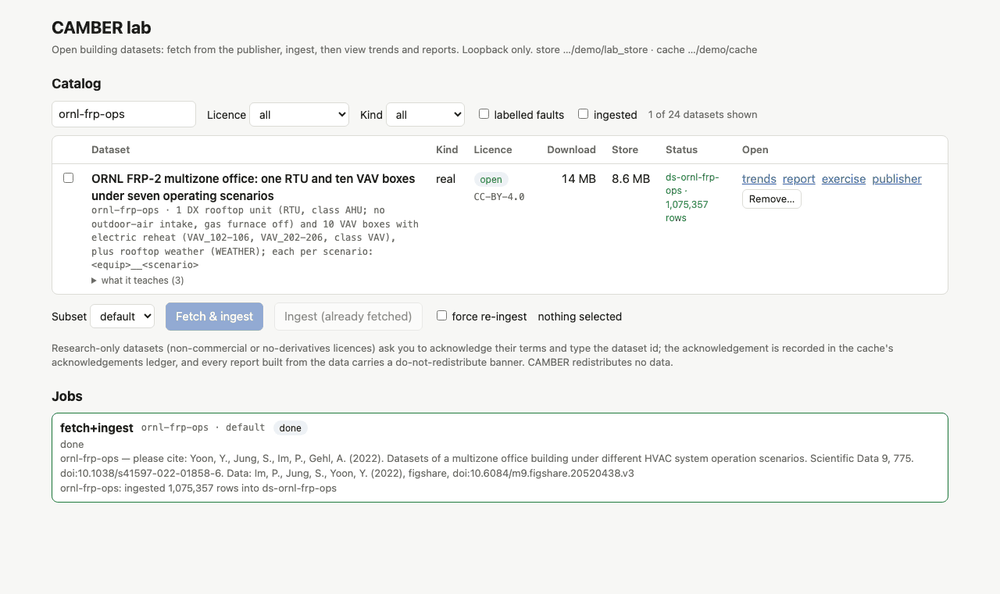
A finished job. The row now names its facility, ds-ornl-frp-ops, links to its trends and report, and has a Remove… button. Data: ORNL FRP-2 operations dataset (Im, Jung, Yoon, 2022), CC-BY-4.0.
Jobs run one at a time, in the order you queued them. While a job is queued or running it has a Cancel button (see Cancel and resume). The job list lives in the running lab only: after a restart it is empty, but the downloads and the store are still there.
Ingest (already fetched) runs only the second half, for datasets you have already downloaded. An ingest of unchanged data is skipped (already up to date); tick force re-ingest next to the button to run it again anyway, for example after a CAMBER upgrade changed how a dataset is read.
Step 5: open the trends
In the dataset's row, click trends. The trend viewer opens on the facility. Choose the
equipment RTU__sb_heating (the night-setback test), tick supply_fan_status,
return_air_temp and supply_air_temp, and untick the rest.
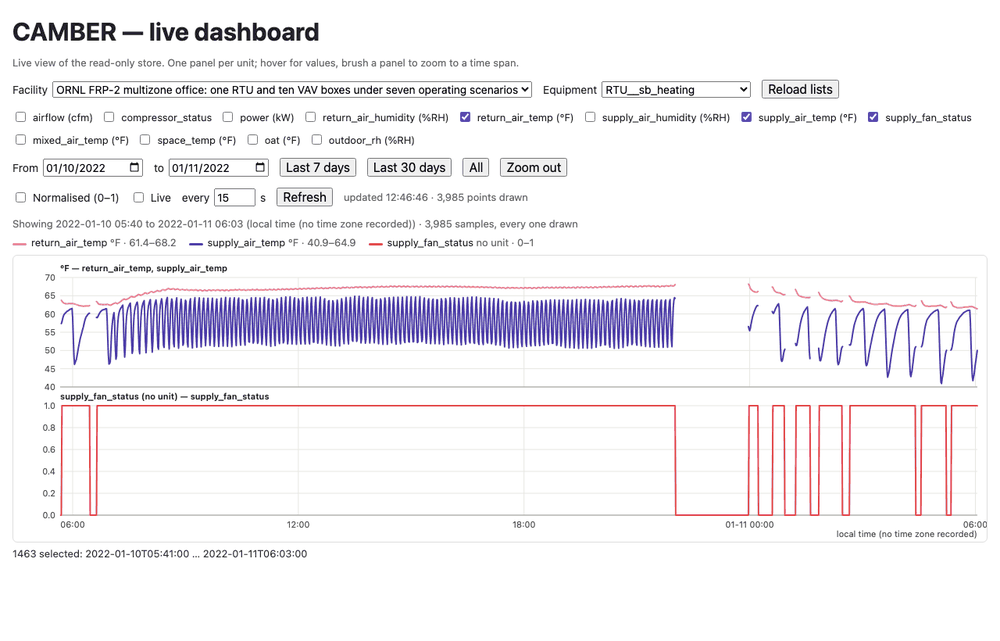
The trend viewer zoomed to a brushed span: one panel per unit, a legend with each series' range, the span and sample count above the chart, and the brushed samples counted under it. The fan stops in the evening and cycles to hold the setback. Data: ORNL FRP-2 operations dataset (Im, Jung, Yoon, 2022), CC-BY-4.0.
The viewer opens on the whole test. Drag across a panel to zoom to about a day, as in the
picture: the fan stops for the night and then cycles on and off to hold the space at its setback
temperature. Switch the equipment to
RTU__base_heating, the around-the-clock test, and compare. Reading the
trends explains the controls.
Step 6: open the report and read its top finding
Back in the lab, click report. It opens in a new tab. The lab builds it the first time you open it by running the dataset's default config (a few seconds here; longer for a big dataset), and keeps it until the data changes or the lab stops.
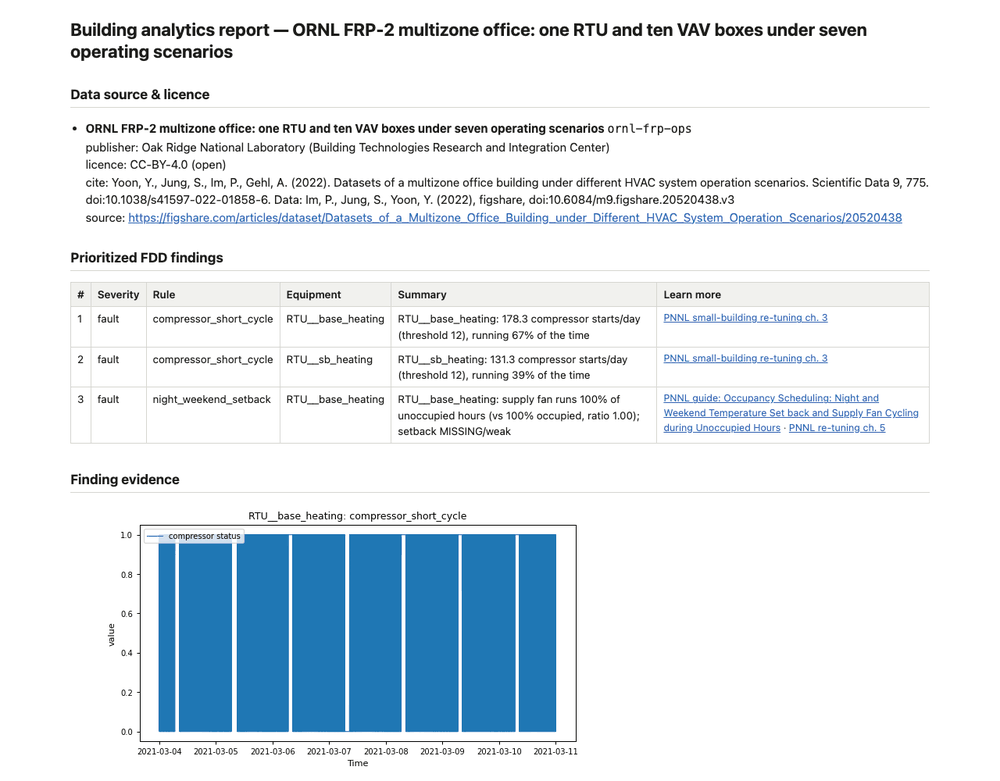
The top of the report: its data source and licence block, the findings ranked worst first with their Learn more links, and the first of the evidence charts. The recommended actions and the caveats follow further down. Data: ORNL FRP-2 operations dataset (Im, Jung, Yoon, 2022), CC-BY-4.0.
Read the Prioritized FDD findings table from the top. Each row is one finding: its severity,
the rule that raised it, the equipment, a one-line summary with the numbers behind it, and links
to the PNNL guidance on the subject. Here the top finding is compressor_short_cycle on the
around-the-clock unit: the summary counts its compressor starts per day against the rule's
threshold of 12 and gives the share of time it ran. Further down, night_weekend_setback
reports that the same unit's fan runs through every unoccupied hour: the setback is missing,
which is the subject of the exercise. Reading the report explains the rest.
Step 7: do the exercise
Click exercise in the row. It opens the workbook's scheduling exercise. From a source checkout the lab serves its own reading copy of the page (the page's Markdown source, with working links) so it opens offline; otherwise the link goes to the published docs site. Work through the exercise's steps. Its first step is the trend view you just opened.
The same on the command line. Every lab action is a
camber datasetscommand you can run yourself, on the same store and cache:camber datasets fetch ornl-frp-ops camber datasets ingest ornl-frp-ops --store lab_store camber datasets config ornl-frp-ops --store lab_store --out ops.json camber run ops.json --out ops_out # every finding, including the ok ones camber report ops.json --out ops.html # the report the lab shows camber serve lab_store # the trend viewer at http://127.0.0.1:8080/uiThe workbook gives both routes for every exercise. See CLI.md.
2. Reading what you see
The trend viewer
The trend viewer is the live view of the store that camber serve also offers (see
Visualization). The lab serves it at
/ui?facility_id=<facility>.
- Facility and Equipment. A catalog dataset is one facility,
ds-<id>(a few, such asbdg2, have one per site). In most datasets each run or scenario is its own equipment, named<equipment>__<scenario>:RTU__base_heatingandRTU__sb_heatinghere, orAHU__fault_freeandAHU__damper_stuck_075in a labelled dataset. - Choosing points. There is one tick box per point role in the facility, with its unit. The first three are ticked when the page opens. A role the chosen equipment does not have draws nothing.
- Panels and the legend. Ticked series that share a unit share a panel, with a labelled
y axis; a series with no unit, such as a fan status, gets its own. The legend gives each
series' colour, unit and range. Hover over a panel for a readout of every ticked series at that
moment; inside a gap in the data the readout shows
—, and the line breaks across gaps. - Normalised (0–1). Scales every series to its own minimum and maximum and draws them on one panel. Use it to compare shapes and timing (when the fan starts against when the return air starts to warm). The hover readout still shows the real values.
- Time axis and UTC. The store holds the site's local clock as the publisher wrote it. When
the catalog knows the site's time zone (for example
bdg2,lbnl-b59,b4b-windesheim), the axis is labelledlocal time (<zone>)and a UTC box converts it totime (UTC). Otherwise there is no box and the axis is labelledlocal time (no time zone recorded): it shows the clock as published, which cannot be placed on UTC. - What is drawn. The viewer opens on each series' whole span. A long series is thinned to
2,000 samples: the span is cut into 1,000 equal slices and each keeps its lowest and highest
sample, so a one-sample spike or a flat stretch still shows. The line under the controls gives
the span shown and the sample count, for example
Showing all data, 2022-01-01 00:00 to
  2022-03-31 23:59 (local time (no time zone recorded)) · 4,000 of 259,200 samples drawn
. - Choosing dates. Pick From and to dates, or press Last 7 days, Last 30 days (counted back from the last sample in the store, not from today) or All. A chosen span is read at full resolution, up to 20,000 samples per series; a longer one is thinned the same way, and the line under the controls says so.
- Brushing to zoom. Drag across a panel to zoom to that span. The viewer reads it again at full resolution, and the line under the chart counts the samples in it and gives their first and last timestamp. Zoom out goes back one step; All goes back to the whole span.
- Live refresh. With Live ticked the viewer re-reads the store every 15 seconds (change it with every … s); Refresh re-reads it at once. The text next to it says when it last updated and how many points it drew. A facility or equipment ingested after you opened the page appears when you open the Facility or Equipment list, press Reload lists, or on the next refresh; there is no need to reload the page.
- Reading the store from Python. To work with a span's numbers rather than look at them, read the store directly, for example:
from camber.store import ParquetStore

frame = ParquetStore("lab_store").read_role_frame(
    facility_id="ds-ornl-frp-ops", equip="RTU__sb_heating"
)
frame.loc["2022-01-11":"2022-01-13", ["return_air_temp", "supply_fan_status"]].plot(subplots=True)
The report
The lab's report is CAMBER's audit report for the dataset's default config: the same report
camber datasets config <id> --store lab_store --out cfg.json and camber report cfg.json --out
report.html write. Since 0.103 it includes the evidence charts. From the top:
- Title. Building analytics report, with the dataset's title.
- Research-only banner. For a research-only dataset only: a red-bordered box, NON-COMMERCIAL
/ RESEARCH USE ONLY, above everything else. The report, and the data behind it, may not be
sold or redistributed. A dataset CAMBER holds research-only for a stated reason although its
licence is open (
rbc-g36-ahu) gives that reason instead. - Data source & licence. The dataset's title and id, its publisher, its licence and tier,
the citation and DOIs, and a link to its source. For a share-alike licence (
bdg2), a note on what share-alike means. Keep this block with anything you build from the report. - Prioritized FDD findings. The findings that need attention (severity
warnorfault), worst first: rank, severity, rule, equipment, summary, and Learn more links to the PNNL guidance when the rule has some. Findings that passed (ok) are left out of the report;camber runprints them all, and itsfindings.jsonholds every metric. - Finding evidence. A chart for each of the findings above, worst first: the samples the rule judged, shaded where it flags them. The report draws the first 12, so a dataset with many findings still opens quickly, and says so when there were more.
- Recommended actions. One advisory action per finding, with the target it aims for and the
standard it cites. The $/yr column shows
—when there is no energy price or load to cost a finding with, as in the lab; the heading then says the actions are ranked by severity. - Energy Conservation Measures, when there are any.
- Caveats. What the rules had to assume or could not check, for example no trended occupancy: unoccupied = outside the assumed schedule. Read them before you trust a finding.
For the printable retro-commissioning report, with a page per issue (its chart, the site checks and the cost), write the config and run the RCx layout:
camber datasets config ornl-frp-ops --store lab_store --out ops.json
camber report ops.json --out ops-rcx.html --layout rcx
See RCX-REPORT.md. A report is a standalone HTML file; the lab serves it in a sandbox that cannot call the lab or load anything from the network.
3. Where the data lives
The cache and the store
| What | Where | How to change it |
|---|---|---|
Dataset cache: downloads, archive members extracted for ingest, manifest.json and acknowledgements.json |
--dir, else $CAMBER_DATA_DIR, else $XDG_CACHE_HOME/camber/datasets, else ~/.cache/camber/datasets |
camber lab --dir D, or set CAMBER_DATA_DIR |
| Store: the ingested data, one facility per dataset | --store, else a portfolio workspace's store (see below), else ./lab_store in the folder you start from |
camber lab --store S, or --workspace W |
The line under the page's title shows both (shortened); the startup line in the terminal prints
the full paths. Use the same --dir and --store with camber datasets and the lab, and they
see the same data.
Inside the cache, each dataset has its own folder: <cache>/<id>/downloads/ for the files as
published (plus a .part file while one downloads) and <cache>/<id>/extracted/ for the archive
members an ingest needed.
Disk use
- The catalog's Download column is what a subset downloads. The Store column is an
estimate of the space it takes once ingested;
defaultsubsets stay under about 100 MB in the store. - For a dataset published as an archive, the members an ingest extracts stay in the cache,
next to the download, and can be many times larger than it. The page counts them: exactly, from
the archive's own index, once a zip is downloaded; before that, from the catalog's
extracted_size, for the share of the archive's files the subset reads. With a read-only cache they are extracted into the store's_staging/folder for the length of the ingest instead (see Sharing one cache read-only). - Before it queues a job, the lab checks the download, the extraction and the store estimate against the free space, with the same 5 % headroom the fetch itself adds. When the cache and the store are on one disk it adds them up. Fetch & ingest stays disabled for a selection the fetch would refuse, and Ingest (already fetched) is checked against the store's disk too.
camber datasets status --dir D --store Slists, per dataset, the subsets fetched, the bytes on disk in the cache (downloads and extractions) and the facilities ingested.- The
fullsubsets are much bigger thandefault. Pick them only when an exercise asks you to.
Cleaning up
Press Remove… in the dataset's row. A dialog says what it deletes and asks you to type the dataset id; Remove stays disabled until you do. It queues a job like any other:
- it deletes the dataset's folder in the cache (downloads and extractions) and its manifest entry, and the job says how much it freed. The ingested data stays, and the trends and report keep working;
- tick Also drop its facilities from the store to purge them too. Their trends and report go with them. The facility ids stay reserved for the same dataset, so you can fetch and ingest it again afterwards.
The same on the command line (stop the lab first, or wait until no job is running):
camber datasets remove ornl-frp-ops                              # the downloads and extractions
camber datasets remove ornl-frp-ops --store lab_store --purge-store   # and its facilities
Add --dir if your cache is not in the default place. The acknowledgements ledger is never
trimmed: it is the record of which research-only licences were accepted.
In a portfolio workspace the purge follows the facility lifecycle. The lab purges a dataset
facility only while it is provisioning or active and has no legal hold; the dialog greys out
the tick box and says why otherwise. A suspended, offboarding or archived facility belongs to
its lifecycle: resume or restore it, or retire it with camber facility offboard, archive and
purge (see PORTFOLIO.md). Every removal and
purge is in the audit log (lab.remove, lab.purge).
4. Setting up a class
Pre-fetching for an offline room
Downloading the same files once per learner is slow, and some rooms have no internet. Fetch once, on a machine with a connection, into a folder you can copy:
camber datasets fetch ornl-frp-ops irish-ahu lbnl-sdahu --dir course-cache
camber datasets fetch --all --dir course-cache       # every open dataset: about 9.4 GB
fetch --all takes the open tier only (the 20 open datasets that CAMBER downloads itself), and
skips the manual ones. The 15 of them that workbook exercises use come to about 6.9 GB. Then copy
course-cache to each learner's machine (a USB drive, a network share) and point the lab at it:
camber lab --dir course-cache
or set it once for every command: export CAMBER_DATA_DIR=$PWD/course-cache. With every file
already in the cache, Fetch & ingest verifies the files, downloads nothing and goes straight
to the ingest.
For the workbook pages offline, run the lab from a source checkout, or point it at a copy of the
repository's docs/ folder with camber lab --docs DIR.
Sharing one cache read-only
Since 0.103 the learners do not need their own copy. One read-only cache can serve the whole room, for example a folder on a network share that only you can write:
camber datasets fetch ornl-frp-ops irish-ahu lbnl-sdahu --dir /srv/course-cache
camber datasets ingest ornl-frp-ops irish-ahu lbnl-sdahu --dir /srv/course-cache --store /tmp/warmup
chmod -R a-w /srv/course-cache      # or share it read-only
Each learner then runs camber lab --dir /srv/course-cache (or sets CAMBER_DATA_DIR) with their
own --store. With a read-only cache:
- Fetch & ingest checks the files against their pinned SHA-256 and writes nothing to the cache. A dataset that is not in the cache cannot be fetched into it. The job fails with the dataset cache … is read-only for this user, so fetch every dataset the class needs beforehand.
- The ingest reads the downloads in place. Archive members missing from the cache's
extracted/folder are extracted into a scratch folder in the learner's store and deleted afterwards. Ingesting each dataset once yourself (the second command above, into any throwaway store) leaves the members in the cache, so the learners' ingests do not extract them again and their stores need no room for them. - Research-only datasets ask each learner to accept the terms. Your acceptance, recorded
when you filled the cache, does not count for them. Each learner's acceptance goes to their
own
acknowledgements.jsonunder$XDG_STATE_HOME/camber/datasets/(else~/.local/state/camber/datasets/). camber datasets removeandingest --from-dirneed a cache they can write.- Every learner must be able to read the folder. If anyone still writes to it, its filesystem must support file locks (see DATASETS.md).
A writable shared cache also works since 0.103: every write to it takes the cache's lock, so two labs fetching into it at once take turns. The second waits up to 30 seconds, then fails with dataset cache … is locked by …; run the job again when the first one finishes. Everyone who writes a writable shared cache also shares its acknowledgements ledger, so prefer a read-only one for a class that uses research-only data.
Manual downloads
Two catalog entries, lbnl-b59 (used by the zone-min-oa and
data-trend-quality exercises) and nist-ibal, come from
publisher portals with terms to accept, so CAMBER never downloads them. Their rows carry a
manual badge and cannot be ticked. Download the files yourself (the row's From a folder…
dialog, and camber datasets info lbnl-b59, say where to get them), then press From a
folder…, type the full path of the folder that holds them (for example
~/Downloads/b59, which the lab expands to your home folder) and press Ingest. The job verifies and
ingests them like any other, and the row then shows the facility, with its trends and report.
force re-ingest applies here too, and a research-only dataset asks for its acknowledgement
first.
The lab checks the path before it queues anything: it must be a full path (not relative to where the lab runs) to a folder you can read. It only reads that folder: it looks for each file by its catalog name, refuses a file that is a link to somewhere outside it, checks each file's size and SHA-256, and copies (or links) it into the cache. It never writes to the folder.
The same on the command line:
camber datasets ingest lbnl-b59 --from-dir ~/Downloads/b59 --store lab_store
Add --dir when the lab uses a cache other than the default. On the command line --from-dir
works for any dataset whose files you already have, which is another way to set up an offline
room. See DATASETS.md.
Synthetic datasets
A row with a synthetic badge (kind synthetic, 0.103) is a dataset CAMBER generates on your
computer instead of downloading: a constructed case for a fault no open dataset shows, such as
synthetic-hw-plant-lockout for the plant-lockout exercise. Tick
it and press Fetch & ingest as for any other: the job generates the file (the same bytes on
every machine), then ingests it, and the row's how it is made link explains the generator.
Nothing is downloaded, so it works in an offline room without pre-fetching. Its reports say it is
synthetic: it describes no real building. See
DATASETS.md.
Running against a portfolio workspace
To keep a record of what was fetched and ingested, run the lab against a portfolio workspace:
camber portfolio init course-ws
camber lab --workspace course-ws
The lab also finds a workspace through $CAMBER_PORTFOLIO, the current folder, or a --store
that belongs to one. Then:
- each dataset's facility,
ds-<id>, is registered asprovisioningat its first ingest and activated after it; - the ingest runs under the workspace's single-writer lock;
- every fetch, acknowledgement and ingest adds a
lab.fetch,lab.acknowledgeorlab.ingestline to the audit log, an ingest from a folder alab.adoptline, and a removallab.remove(andlab.purgeper purged facility):camber portfolio auditlists them; - a dataset facility that is suspended, offboarding or archived is not re-ingested until you
camber facility resumeorrestoreit, and the lab does not purge it (nor one under a legal hold).
What "loopback only" means for a shared machine
The lab binds 127.0.0.1 only, and has no option to listen anywhere else: no other computer can
reach it. But on a computer that several people are logged in to, each of them can reach
127.0.0.1. So, since 0.102, every page and request of the lab needs the access token in the
launch URL, or the cookie the browser gets for it:
- the token is created each time the lab starts and is shown only in the terminal that started it and in a launch file only your account can read; the lab never puts it on a command line, where other people's process lists would show it;
- without it, every page, the catalog, the jobs, the reports, the trend viewer and its data answer 401 and show nothing;
- a change (queueing or cancelling a job: fetch, ingest, ingest from a folder or remove, for
catalog ids only) must also come from the lab's own page, which sends a second token, and the lab answers only requests addressed to
127.0.0.1:<port>orlocalhost:<port>. That keeps other websites open in your browser from using it.
The lab still has no user accounts: whoever has the launch URL can use it. Your own account and the computer's administrators (root) can read the terminal and the launch file, so on a shared computer:
- do not paste the launch URL into a chat, a screenshot or a shared document;
- give each learner their own login, and run one lab per learner;
- do not leave a lab running unattended; stop it with Ctrl-C when you are done;
- to show data to a room, project your screen, or publish a store read-only with
camber serve(it accepts no writes and needs a token only with--auth token: see its notes in SECURITY.md). The lab cannot be opened from another computer.
The full list of the lab's request checks is in SECURITY.md.
5. Troubleshooting
The port is in use
error: port 8765 on 127.0.0.1 is already in use (another `camber lab`, or another program, is listening there). Stop it, or pick a free port: `camber lab --port 8766` (or any free port number)
Another program, or a lab you already started, is using port 8765. The lab exits with code 1. Stop the other lab, or pick another port:
camber lab --port 8766
--port 0 lets the system pick a free port; the launch URL the lab prints carries it.
The page says 401: open the URL from the terminal
The page reads Open the lab from its terminal, or a trend or report says 401. The browser has
no valid lab cookie: you typed or bookmarked http://127.0.0.1:8765/lab without the token, the
browser was closed (the cookie lasts one browser session), or the lab was restarted (each start
makes a new token, and the old URL and cookie stop working). Open the launch URL again, the whole
line with ?token=..., from the terminal where camber lab is running.
Lost the terminal? The lab also saved the URL in its launch file, lab-<port>.url, readable by
your account only:
- on Linux,
$XDG_RUNTIME_DIR/camber/lab-8765.url(usually/run/user/<your uid>/camber/); - elsewhere, or when
XDG_RUNTIME_DIRis not set,~/.config/camber/lab-8765.url(or$XDG_CONFIG_HOME/camber/when that is set).
The lab deletes the file when it stops. If the lab printed warning: launch file not written,
the folder or an old file there is writable by other accounts, or belongs to another account,
and the lab refused to put the secret in it. Make the folder yours and private (chmod 700),
or just use the URL in the terminal.
A 403 that says That lab token is not valid for this run means the URL holds an old or mistyped token: copy it again.
The page says "host not allowed"
You opened the lab under another name, such as the computer's name or its network address. Use
http://127.0.0.1:8765/lab or http://localhost:8765/lab, on the computer the lab runs on. The
cookie belongs to the name you first opened, so for localhost open the launch URL with
localhost in place of 127.0.0.1.
Fetch & ingest is greyed out
The button is disabled when nothing is ticked, and when the selection does not fit: the line
next to it turns red and says which disk is short (not enough disk to fetch & ingest: cache +
store needs …, … free). It counts the download, the archive extraction and the store estimate,
each with the fetch's 5 % headroom (see Disk use). Ingest (already fetched) is
disabled the same way when the extraction and the store do not fit. Untick something, choose the
default subset, free some space (Remove… another dataset), or start the lab with --dir or
--store on a bigger disk.
The server runs the same check before it queues a job and refuses with not enough disk space: …. The fetch and the ingest still check again before they download or extract, since the disk can fill up while a job waits; either stops the job with not enough disk space at …: need …, only … free.
Proxies and firewalls
Every download is HTTPS from the dataset's publisher (camber datasets info <id> names the
source). CAMBER downloads with Python's standard library, which uses the proxy named in the
https_proxy / HTTPS_PROXY environment variable:
export HTTPS_PROXY=http://proxy.example.org:3128
camber lab
A failed connection stops the job with download failed for http:// address.
Checksum mismatch: the .bad file
A job that fails with sha256 mismatch (or size mismatch) … kept as ….bad; the upstream file
may have changed -- not accepted means the bytes that arrived are not the file the catalog
pins. CAMBER does not use them; it moves them to <cache>/<id>/downloads/<file>.bad for you to
inspect. The usual causes are a download damaged on the way, or a proxy that answered with its
own page instead of the file. Press Fetch & ingest again: the next try downloads the file
afresh. If it fails the same way again, the publisher has probably changed the file: check
camber datasets info <id> and report it. Delete the .bad file when you are done
(camber datasets remove <id> removes it with the rest).
On the command line the same failure exits with code 2. A file given with --from-dir that does
not match is refused and left untouched.
Cancel and resume
Cancel stops a queued job at once, and a running one at its next progress report.
- A download stops with its partial
.partfile kept. The next Fetch & ingest of the same dataset resumes it where it stopped when the publisher allows it, and starts again otherwise. Stopping the lab with Ctrl-C mid-download keeps the partial file in the same way. - An ingest stops before its new data replaces the old: the store keeps what it had.
At most 20 jobs can be queued or running at once; the page refuses more until some finish or you cancel them.
The xlsx extra
ornl-frp-vav and nist-heatpump-fdd are Excel workbooks. Without the xlsx extra their rows
show a red needs xlsx badge and install first: pip install "camber-toolkit[xlsx]", and
cannot be ticked, so nothing is downloaded that could not be ingested. Install the extra, stop and
restart the lab, and reload the page. A request that skips the page is refused the same way: …
needs the optional extra(s) xlsx (the 'openpyxl' package: pip install "camber-toolkit[xlsx]").
A research-only dataset will not fetch
Datasets with a non-commercial or no-derivatives licence (and one held back for a stated reason) carry the red research-only badge. Ticking one and pressing Fetch & ingest opens a dialog with the licence terms and the citation.
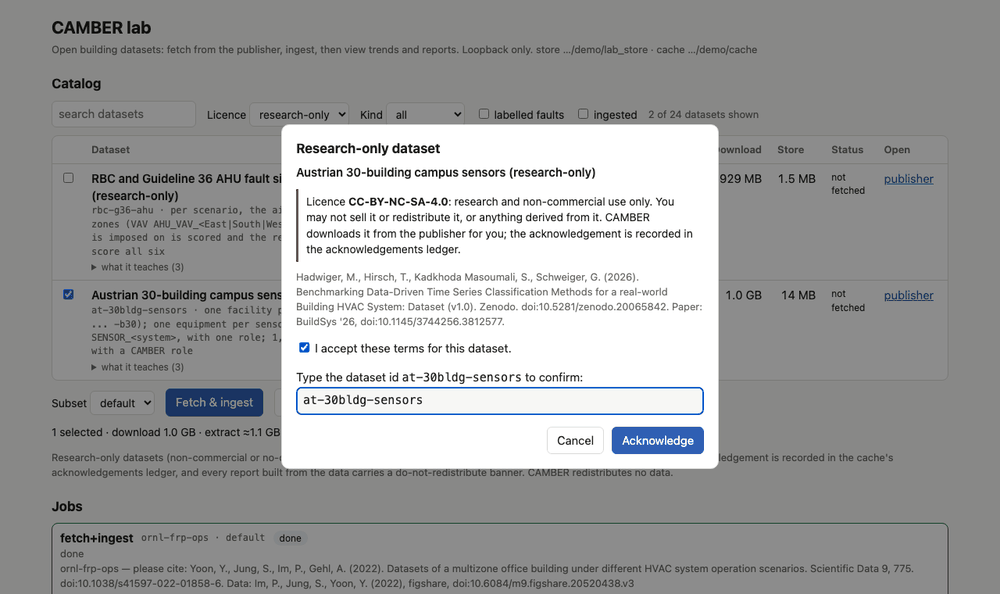
The research-only dialog: tick the terms and type the dataset id; only then does Acknowledge queue the fetch. Every fetch asks again.
Acknowledge stays disabled until you tick I accept these terms and type the dataset id
exactly. Cancel queues nothing. The acceptance is recorded in the cache's
acknowledgements.json (in your own, for a read-only cache), and every report built from the
data carries the do-not-redistribute banner. Each fetch asks again; Ingest (already fetched)
does not, once the dataset's current licence was accepted in this cache (by you, for a read-only
cache).
A job failed with another message
The job shows the error in red. The ones you may meet:
| Message | What to do |
|---|---|
… not fetched yet (…); run camber datasets fetch … first |
You pressed Ingest (already fetched) for a dataset that is not in the cache. Use Fetch & ingest. |
| … is a manual download: CAMBER does not fetch it | See Manual downloads. |
| portfolio is locked by … | In a workspace, another command holds the lock. Wait for it to finish, then try again. |
| dataset cache … is locked by … or store … is locked by … | Another lab or camber datasets command is writing the same cache or store. It waited 30 seconds; try again when the other job finishes. |
| the dataset cache … is read-only for this user | The cache is shared read-only and the dataset is not fully in it. Ask whoever maintains it to fetch the dataset, or use a cache you can write (--dir). |
| not enough disk space: … | The selection does not fit; see Fetch & ingest is greyed out. |
| … is suspended: its lifecycle owns its data … or … is under a legal hold … (when removing) | In a workspace, the purge is refused; see Cleaning up. The cache can still be removed. |
| … is not a folder, dir must be an absolute path …, … links outside it | From a folder… needs the full path of a folder you can read that holds the files themselves. |
| facility … is suspended: the lab ingests only into provisioning or active facilities | In a workspace, camber facility resume (or restore) it first. |
| report for … failed: … (in the report's tab) | The report could not be built from the store; the message says why. |
| lost contact with the lab server (at the top of the page) | The lab stopped. Start it again and reload the page. |